
New Year, New Cyber Habits: Reset Your Family's Digital Safety
A technical log for parents (with no tech degree required)
Kae David
1/7/20262 min read
The new year is a great time to reset routines — and that includes your family’s digital safety.
Think of this as a digital check-up, not a tech overhaul. You don’t need to be an expert. You just need to know where to look and what to change.
Below is a simple “technical log” you can walk through once a year (or once a quarter if you’re feeling ambitious).
1. Password Reset: The Front Door of Your Digital Life
What this really means:
Passwords are like house keys. If you’ve reused them, shared them, or haven’t changed them in years — assume someone else might have a copy.
What to do (simple version):
Change passwords for:
Email
Apple ID / Google account
Social media
School portals
Use one password per account
You don't need a "perfect password" Longer + different is what matters most
Turn on two-step verification (this means a code gets sent to your phone)
Parent shortcut:
If remembering passwords feels impossible, use a password manager (Apple Keychain, Google Password Manager, or 1Password). Let the phone remember — that’s what it’s good at. P.S. We will be going into more detail on what a Password Manager is and how to set it up in the upcoming weeks!
2. Clear Cookies
What this really means:
Cookies are tiny trackers websites use to remember you. Clearing them helps remove stored data that apps and websites don’t need anymore.
What to do:
On phones, tablets, or computers:
Open browser settings
Clear cookies and site data
It's that simple! And is just one small step that helps keep your family safer!
Why parents should care:
This reduces tracking, improves privacy, and can even fix weird app behavior.
3. Restart Devices
Yes — this one is real cybersecurity advice.
What this does:
Applies updates
Clears temporary memory
Fixes glitches
Stops background processes you didn’t approve
What to do:
Restart phones, tablets, laptops, and gaming consoles at least once a week.
4. Check Settings
This is the most important step for parents.
Where to look:
iPhone/iPad → Screen Time
Android → Family Link
Gaming consoles → Parental Controls
Streaming apps → Kids profiles
What to confirm:
App downloads require approval
In-app purchases are off
Content is age-appropriate
Messaging is limited or restricted
Reminder:
Most safety tools are already there — they just need to be turned on
5. Talk About the “Nasties” (This Is a Security Control Too)
What this really means:
Technology alone won’t protect your child. Conversations will.
Have simple rules like:
If something feels weird → tell a parent
Don’t share photos, school name, or address
Never move chats to another app without asking
Bots, games, and “friends online” are not real friends
Keep it light:
This doesn’t need to be scary. It just needs to be clear.
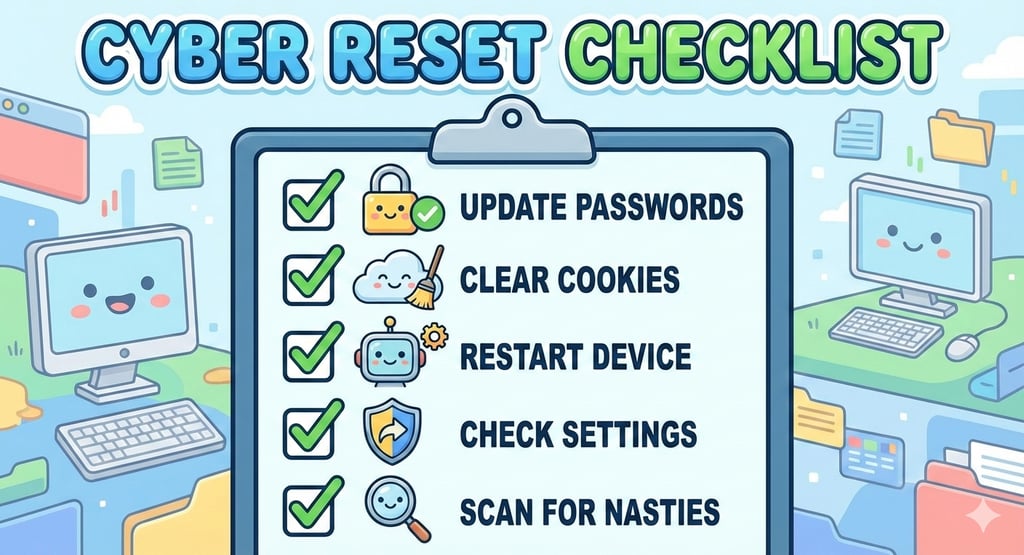
🧾 Your Annual Cyber Reset Checklist
✔ Change important passwords
✔ Clear cookies
✔ Restart devices
✔ Check settings
✔ Talk and scan for "nasties"
That’s it.
Final Thought from Cybersecurity Parents
You don’t need to monitor everything.
You don’t need to know every app.
You just need visibility, boundaries, and consistency.
New year. New habits. Stronger digital safety for your family.
Cybersecurity Parents LLC
Empowering families to navigate the digital world.
Email us
© Cybersecurity Parents LLC 2025. All rights reserved.


All content, materials, and sessions provided by Cybersecurity Parents LLC are intended for informational and educational purposes only.
They do not constitute legal, financial, or cybersecurity advice. Parents, educators, and participants should use their own judgment and, when necessary, consult with a qualified professional. By participating in our events, reading our materials, or using our resources, you acknowledge and agree that Cybersecurity Parents LLC is not liable for any actions you take or outcomes resulting from the use or misuse of our content.