
Password Managers for Parents - What They Are and How to Use Them
If you’ve ever thought: “I use the same password because I can’t remember 50 different ones,” or “I keep them in my Notes app because… where else would I put them?” You’re not alone. But here’s the truth: passwords are still the #1 way families get hacked—because most of us reuse them. That’s where password managers come in. They’re one of the easiest “set it once” security habits you can adopt this year.
1/15/20262 min read
What Is a Password Manager?
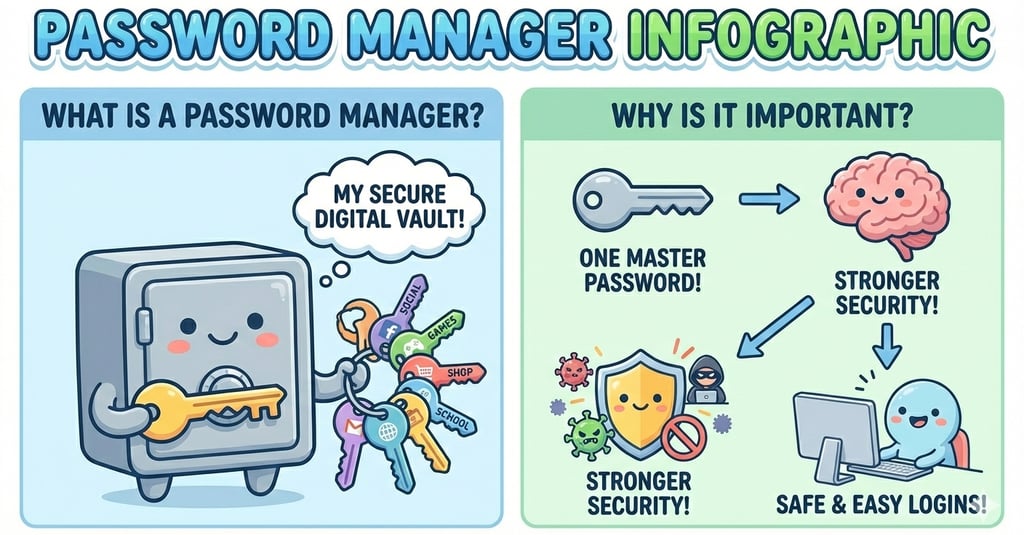
A password manager is a secure tool that:
creates strong passwords for you
saves them for you
autofills them when you log in
helps you avoid using the same password everywhere
Parent translation: It’s like a locked keyring that remembers every password so you don’t have to.
Why Password Managers Are Important (Especially for Parents)
1) They stop password reuse
Most people reuse passwords across accounts. If one site gets breached, attackers try that same password everywhere else (email, social media, Amazon, etc.).
A password manager makes it easy to have unique passwords for everything.
2) They protect your email (your “master key”)
If someone gets into your email, they can reset passwords for your bank, social accounts, school portals—everything.
Password managers help you lock down email accounts with strong, unique passwords.
3) They reduce the “mental load”
Parents are already juggling enough. A password manager removes the stress of remembering logins and makes it easier to maintain good security habits.
Which Password Manager Should Parents Use?
There are many great options—but if you’re already in the Apple ecosystem, the simplest place to start is:
Password Manager via iCloud Keychain
It’s built into iPhone, iPad, and Mac, and it works quietly in the background.
Step-by-Step: How to Use Apple Passwords (iPhone + iPad + Mac)
Step 1: Turn on iCloud Keychain (the engine behind Apple Passwords)
On iPhone/iPad:
Open Settings
Tap your name at the top (Apple ID)
Tap iCloud
Tap Passwords & Keychain (or Keychain)
Toggle Sync this iPhone/iPad ON
✅ This allows your passwords to sync across Apple devices.
Step 2: Make Sure Autofill Is Turned On
On iPhone/iPad:
Go to Settings
Type Passwords
Tap AutoFill Password and Passkeys
Turn Autofill Passwords ON
Select Autofill from: iCloud Passwords & Keychain
What this does: When you log in to apps and websites, your phone will offer to fill the password automatically.
Step 3: Save Your Existing Passwords (The Easy Way)
You don’t have to manually type them all in.
The fastest method:
The next time you log into a website or app, your iPhone will ask:
“Save password?”Tap Save Password
Do this over time as you naturally log into things.
Parent win: No big project required.
Step 4: Create a Strong Password Automatically (No Thinking Required)
When you’re creating a new account (or changing an old password):
Tap the password field
Choose Strong Password (Apple will suggest one)
Tap Use Strong Password
That’s it. Apple stores it and autofills it next time.
Step 5: Use Face ID / Touch ID for One-Tap Login
If your phone asks to use Face ID or Touch ID for passwords, say yes.
Why it matters:
It prevents someone else from accessing your saved passwords if they get into your phone.
Best Practices Parents Should Know
✅ Use a strong phone passcode
Face ID is great, but your passcode is still the backup key.
✅ Turn on 2-factor authentication for Apple ID
This protects the password vault itself.
✅ Don’t store passwords in Notes or screenshots
Those are easier to access if your phone is compromised or backed up insecurely.
Final Thoughts from Cybersecurity Parents
If you do nothing else this month, do this:
🔐 Use a password manager.
📩 Start with your email account.
✅ Let your phone do the hard work.
A password manager is one of the highest-impact, lowest-effort security upgrades a family can make.
Cybersecurity Parents LLC
Empowering families to navigate the digital world.
Email us
© Cybersecurity Parents LLC 2025. All rights reserved.

All content, materials, and sessions provided by Cybersecurity Parents LLC are intended for informational and educational purposes only.
They do not constitute legal, financial, or cybersecurity advice. Parents, educators, and participants should use their own judgment and, when necessary, consult with a qualified professional. By participating in our events, reading our materials, or using our resources, you acknowledge and agree that Cybersecurity Parents LLC is not liable for any actions you take or outcomes resulting from the use or misuse of our content.