
Setting Up a Travel Router for Protected Browsing
In this post we explain how to setup and use this TP-Link travel router to enhance protection for your family while traveling. This post is best viewed on a desktop/laptop browser.
Chad Rychlewski
12/14/20254 min read
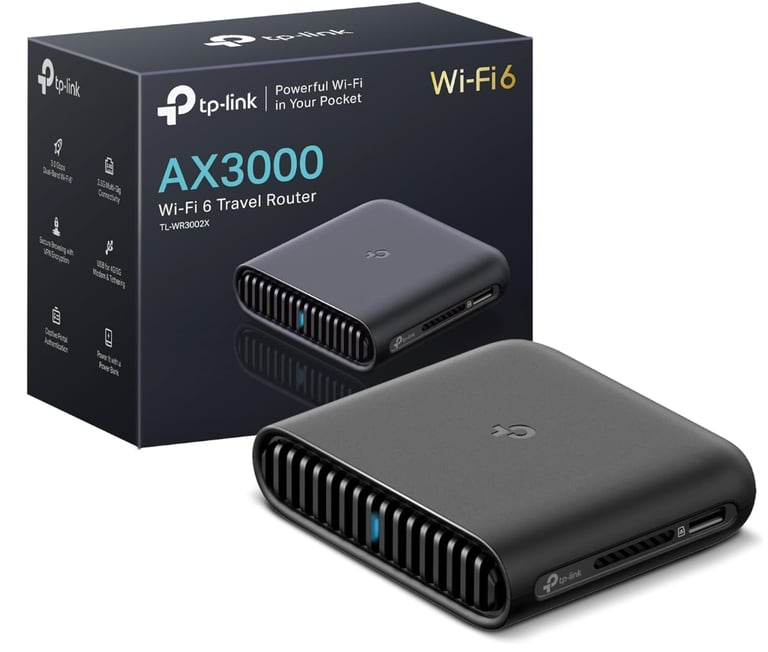
How to Set Up and Use the TP-Link Dual-Band Wi-Fi 6 AX3000 Travel Router TL-WR3002X
A Practical Guide for Families, Travelers, and Parents Who Want Control
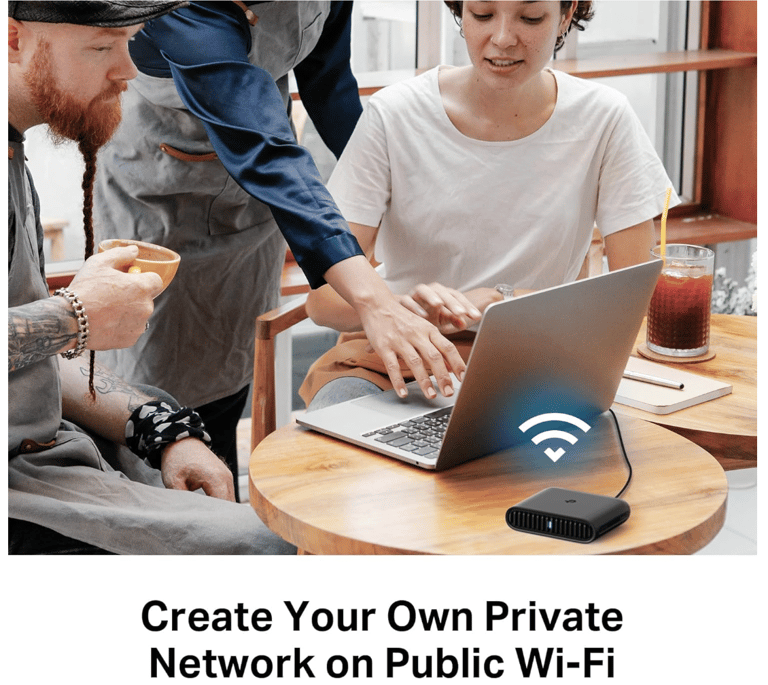
If you hand your kids devices and trust hotel or public Wi-Fi to behave, you’re gambling. Public networks are designed for convenience, not safety. This router lets you bring your rules, your security, and your visibility with you.
Section 1. First-Time Setup
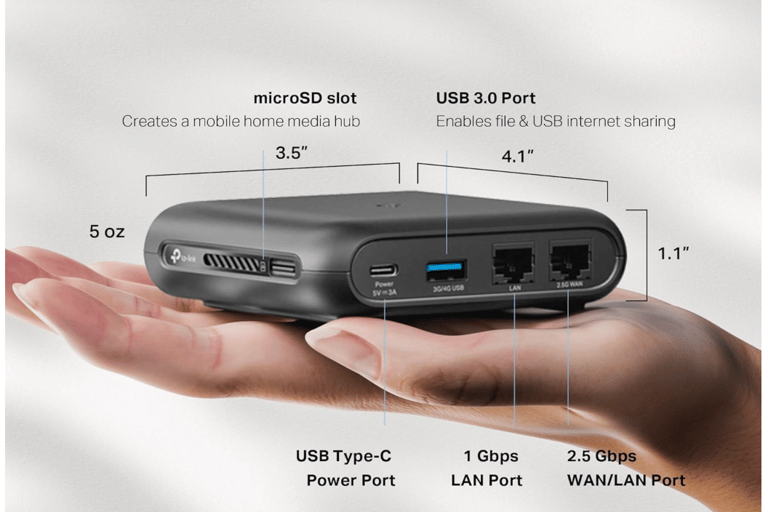
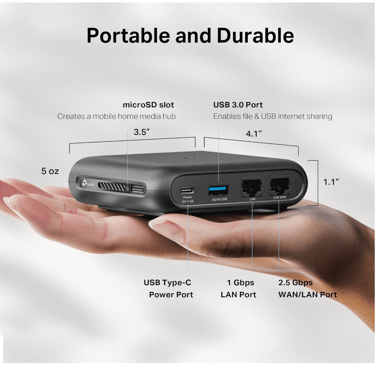
• USB-C power
• WAN Ethernet port
• USB-A port
• Reset button
Step 1. Power the Router
Plug the router into the wall or a USB-C power bank. Wait until the LEDs stabilize.
If you can’t power it, nothing else matters. Start here.
Step 2. Connect Your Phone or Laptop
On your device, open Wi-Fi settings.
Connect to the network name printed on the bottom of the router.
Enter the default password.
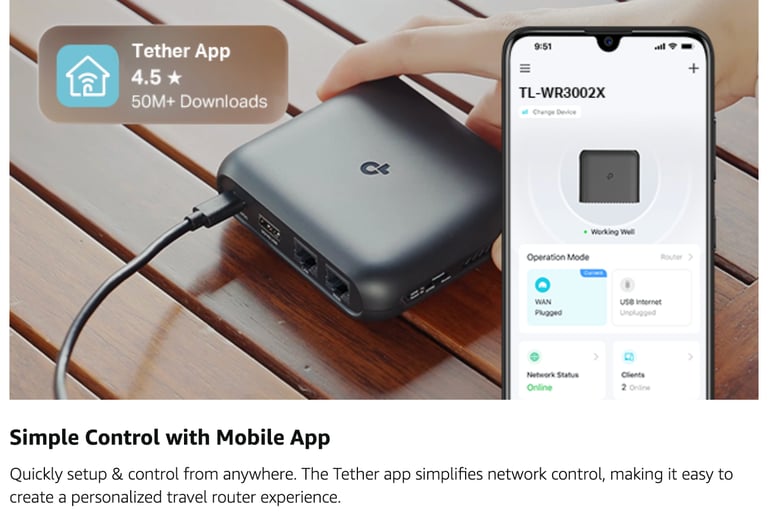
Step 3. Install the TP-Link Tether App
Download TP-Link Tether. Open it. Add a new device.
This app exists so non-technical people don’t have to touch router admin pages. Use it.
Step 4. Secure It Immediately
The app will ask you to:
• Rename the Wi-Fi network
• Create a strong password
Do not reuse a home password. That defeats the point.
Section 2. Everyday Use Cases
Use Case A. Hotel or Airbnb Wi-Fi
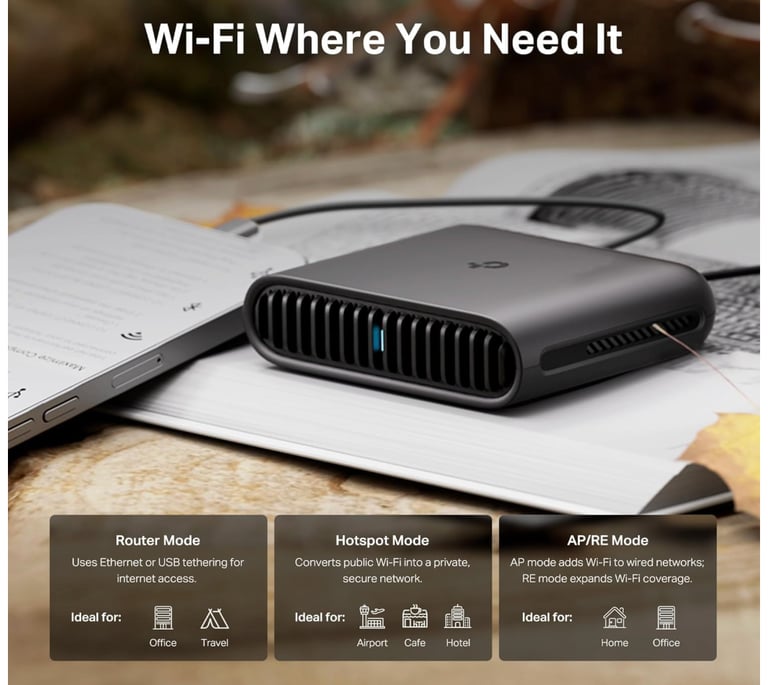
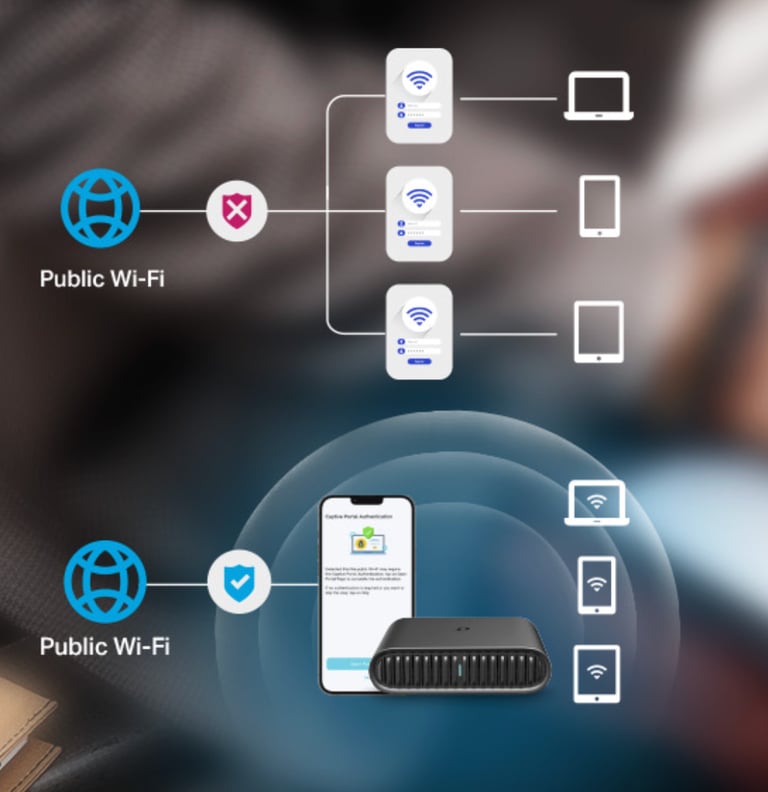
Set the router to Hotspot Mode.
Connect the router once to the hotel Wi-Fi.
Log into the captive portal one time.
Every device now connects to your router, not the hotel.
This stops device fingerprinting across phones, tablets, and laptops. That’s real privacy, not vibes.
Use Case B. Phone Internet for the Whole Family
Plug your phone into the router’s USB port.
Enable USB Tethering Mode.
One phone plan. Multiple devices. More stable than phone hotspot chaos.
Use Case C. Weak Wi-Fi in Rentals
Select Range Extender Mode.
Choose the weak network.
Place the router halfway between the router and your kids’ room.
Section 3. Using This Router to Protect Children
This is where most parents misunderstand the problem.
What This Router Actually Controls
• Which devices connect
• When devices can access the internet
• What categories of content are allowed
• Whether traffic is encrypted
What It Does Not Do
• It does not replace parenting
• It does not read your child’s messages
• It does not magically block everything harmful
Control beats blind trust. Always.
Step-by-Step. Parental Controls Setup
Open the Tether app.
Go to Parental Controls.
Create a profile for each child.
Assign their devices.
Set:
• Bedtime cutoffs
• Daily usage limits
• Blocked content categories
This works on any network because the router enforces rules, not the device.
That’s the difference between hoping settings stay enabled and knowing they are.
Section 4. VPNs Explained
What Happens Without a VPN
On public Wi-Fi, your data can be:
• Observed
• Logged
• Manipulated
• Redirected
Even “secure” websites still leak metadata. DNS queries alone expose behavior patterns.
What a VPN Actually Does
A VPN creates an encrypted tunnel between your device and a trusted endpoint.
In plain terms:
• Outsiders see scrambled data
• Websites can’t easily profile you
• Attackers can’t hijack sessions
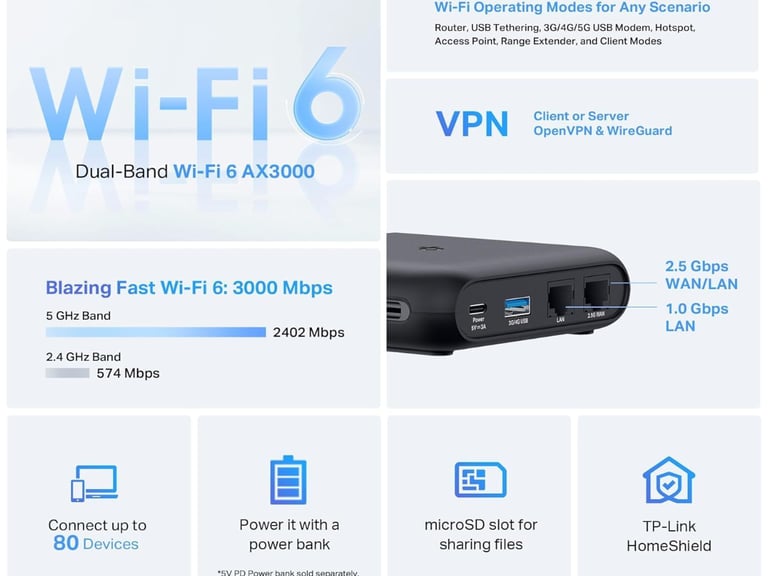
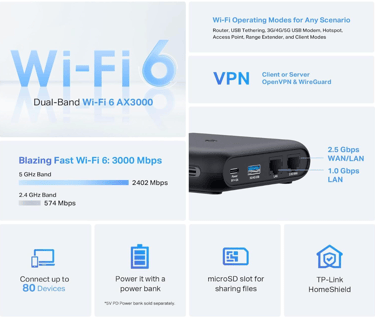
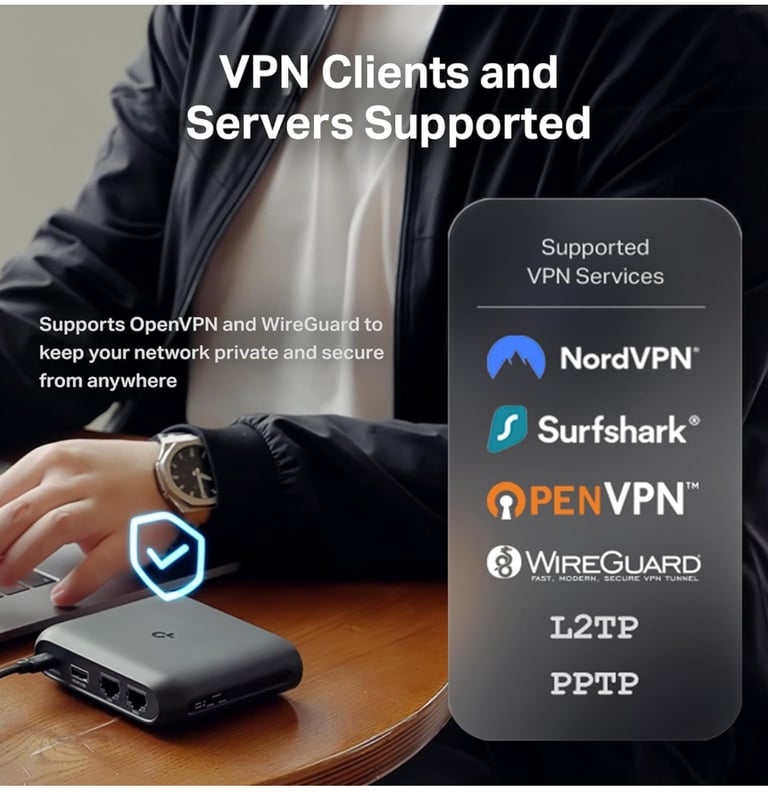
This router supports WireGuard and OpenVPN, which are modern, audited protocols. That matters. Outdated VPN tech is security theater.
Step-by-Step. Enable VPN on the Router
Open the router web interface.
Go to Advanced > VPN.
Enable WireGuard or OpenVPN.
Import your VPN provider configuration.
Set VPN to auto-connect.
Now every device. Including kids’ tablets. Uses encrypted traffic automatically.
No app toggles. No forgetting to turn it on.
Section 5. The Printable Quick Checklist
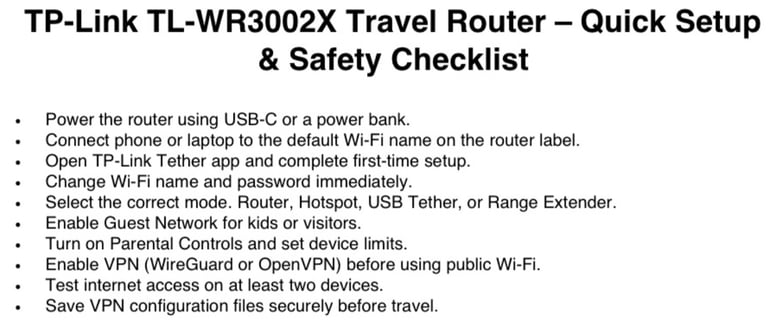
I created a one-page checklist parents can print or save before traveling.
👉 Quick Setup & Safety Checklist
This reduces setup mistakes. Fewer mistakes equals fewer “this thing doesn’t work” complaints.
Final Reality Check
If a family travels and relies on random Wi-Fi, they’ve already accepted unnecessary risk.
If they rely on device-level controls alone, they’re lying to themselves about consistency.
This router gives portable structure. Structure is what kids actually need online.
Get it on Amazon --> https://amzn.to/452JoyP
Cybersecurity Parents LLC
Empowering families to navigate the digital world.
Email us
© Cybersecurity Parents LLC 2025. All rights reserved.


All content, materials, and sessions provided by Cybersecurity Parents LLC are intended for informational and educational purposes only.
They do not constitute legal, financial, or cybersecurity advice. Parents, educators, and participants should use their own judgment and, when necessary, consult with a qualified professional. By participating in our events, reading our materials, or using our resources, you acknowledge and agree that Cybersecurity Parents LLC is not liable for any actions you take or outcomes resulting from the use or misuse of our content.